
Your computer freezes during basic tasks, takes forever to open programs, or suddenly runs loud and hot for no obvious reason. These symptoms usually point to one problem: your RAM is full.
When RAM (the fast memory your computer uses for active tasks) maxes out, everything slows down because your computer starts using your hard drive as backup — and hard drives are dramatically slower.
The problem builds gradually. You install programs, accumulate browser extensions, leave applications running in the background, and suddenly your 8GB or 16GB of RAM disappears. What used to feel fast now crawls. Switching between programs lags. Opening new tabs takes seconds instead of being instant.
It’s more than a little frustrating, and freeing up RAM fixes these issues immediately. Here are seven ways you can free up RAM and restore your computer’s speed.
1. Close unused apps and browser tabs
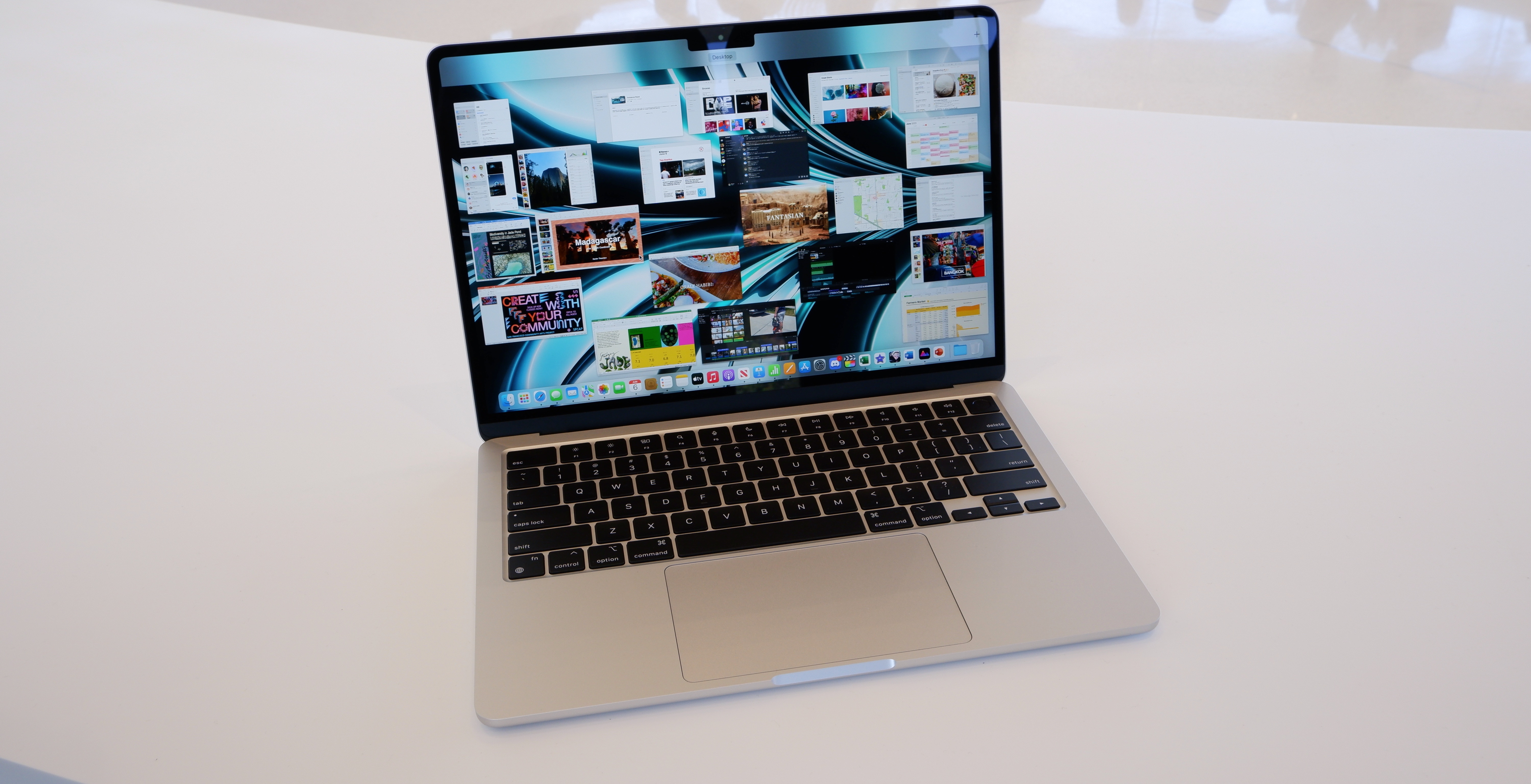
Every open program and browser tab consumes RAM. If you have dozens of tabs open across multiple browser windows, plus applications running in the background you forgot about, RAM fills up fast.
Close programs you’re not actively using. On Windows, right-click the taskbar and select Task Manager to see everything running.
On Mac, press Command + Option + Esc to open Force Quit Applications. Close anything you don’t need right now.
Browser tabs are major RAM consumers. Each tab stores data in memory so close tabs you’re not actively reading. If you need them later, bookmark them instead of leaving them open indefinitely.
Some programs continue running even after you think you’ve closed them. You can check your system tray (Windows) or menu bar (Mac) for icons indicating programs still active in the background. Right-click and quit them properly.
2. Identify RAM hogs
Sometimes a single program or process consumes disproportionate RAM. Identifying and closing it frees up significant memory immediately.
On Windows, open Task Manager (Ctrl + Shift + Esc) and click the Memory column to sort by RAM usage.
On Mac, open Activity Monitor (search in Spotlight) and click the Memory tab.
Look for programs using hundreds of megabytes or gigabytes of RAM. If something you’re not actively using sits at the top of the list, close it. If you don’t recognize a process consuming massive RAM, research it.
Check regularly, especially when your computer feels slow. Identifying the specific cause of high RAM usage lets you address it directly instead of guessing which programs to close.
3. Clear your browser cache
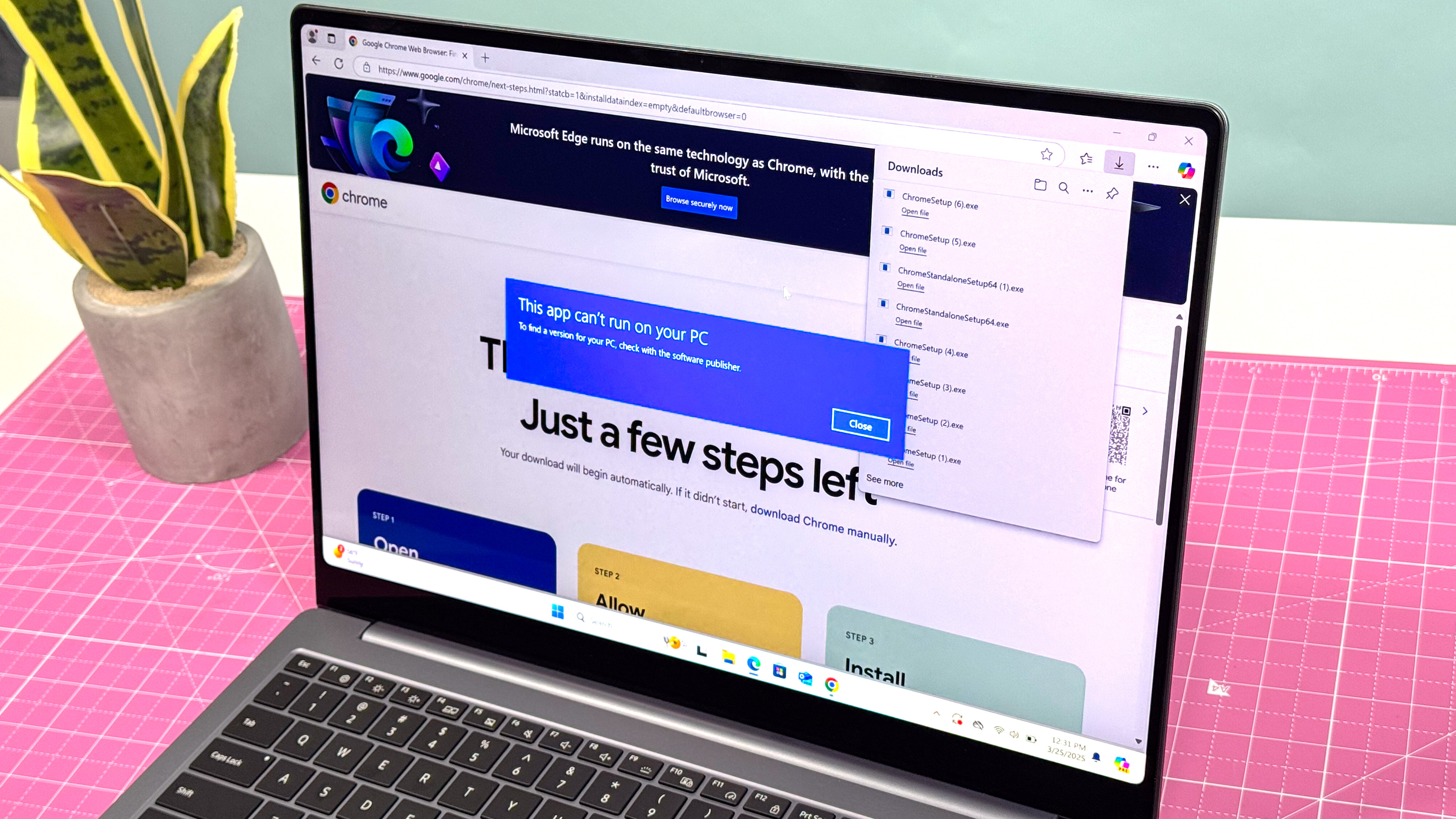
Browser cache stores website data so pages load faster on repeat visits. Over time, cache grows large and consumes significant RAM, especially if you browse heavily and never clear it.
On Chrome, go to Settings, Privacy and security, and Clear browsing data.
On Firefox, go to Settings, Privacy & Security, Cookies and Site Data, and Clear Data.
On Safari, go to Safari, Settings, Privacy, Manage Website Data, and Remove All.
Browser extensions also consume RAM. Review your extensions and remove ones you don’t actively use. Each extension runs in the background, using memory even when you’re not interacting with it.
4. Restart your computer

The simplest fix is restarting your computer. When you restart, all RAM gets wiped clean and programs reboot from scratch. This clears processes running in the background that you didn’t realize were consuming memory.
On Windows, click Start, Power, and Restart. On Mac, click the Apple menu and Restart. Don’t just put your computer to sleep, actually restart it to clear RAM completely.
Programs and processes accumulate over days or weeks of continuous use. Temporary files, cached data, and background tasks pile up in RAM without you noticing. A restart eliminates all of this instantly, giving you a clean slate with maximum available memory.
If your computer feels sluggish, restart before trying anything else. It takes minutes and often solves RAM problems immediately.
5. Disable startup programs

Startup programs launch automatically when you turn on your computer. Each one consumes RAM immediately, even if you don’t need them running.
On Windows, open Task Manager (Ctrl + Shift + Esc), go to the Startup tab, and disable programs you don’t need launching automatically.
On Mac, go to System Settings, General, Login Items and remove unnecessary startup applications.
Many programs add themselves to startup without asking. Chat apps, cloud storage services, update managers, and software you installed months ago all compete for RAM the moment your computer boots.
Disable everything except essential programs. Your computer will start faster and have more RAM available for tasks you actually want to perform.
6. Uninstall programs you don’t use

Old third-party programs you no longer use still consume resources. Even when not actively running, they often install background services that take up RAM during startup or run periodically without your knowledge.
On Windows, go to Settings, Apps, Installed apps and uninstall anything you haven’t used in months.
On Mac, open Finder, go to Applications, and drag unused programs to the Trash.
Go through your installed programs systematically. Remove trial software you never bought, games you played once, utilities that duplicate features your computer already has, and anything you can’t remember installing.
7. Adjust visual effects
Visual effects such as animations, transparency, shadows, etc, make your computer look polished but consume RAM to render. Reducing or disabling them frees memory for actual tasks.
On Windows 11, go to Settings, Accessibility, Visual effects and toggle off Animation effects and Transparency effects.
On Mac, go to System Settings, Accessibility, Display and enable Reduce motion and Reduce transparency.
The difference is noticeable on older computers or systems with limited RAM. Disabling effects makes windows and menus appear instantly without animated transitions, which also makes navigation feel faster.
You sacrifice aesthetics for performance, but if RAM is your bottleneck, this trade-off improves usability significantly.
Source : Tom’s Guide
Leave a Reply