
ChatGPT has become so useful that you likely have it running on multiple devices. In fact, you may have it active in more places than you realize, which can pose a security risk. What if someone accesses your account on a device you left behind, or a colleague views your conversations on an office computer?
There is now a way to manage those sessions and remotely sign out of your account. It’s also an easy way to check for unauthorized access if you suspect your account has been compromised. The process is straightforward and takes only a few seconds. Here’s how it works.
1. Select your profile
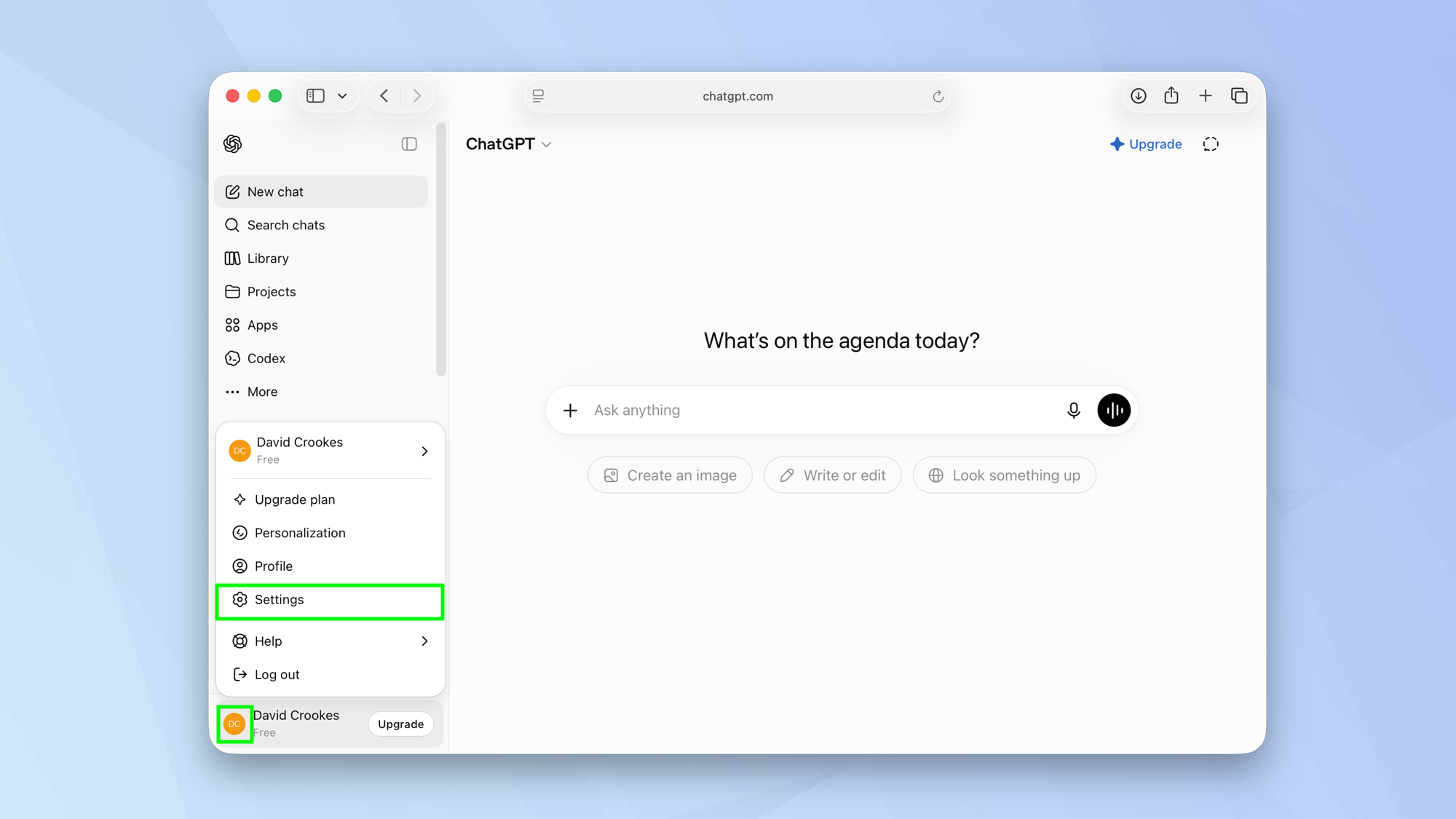
If you intend to use the website, go to ChatGPT and log in if you haven’t done so already. Now click your profile icon and select Settings.
If you’re on a mobile phone, open the ChatGPT app. Next, tap your profile icon.
2. Choose security settings
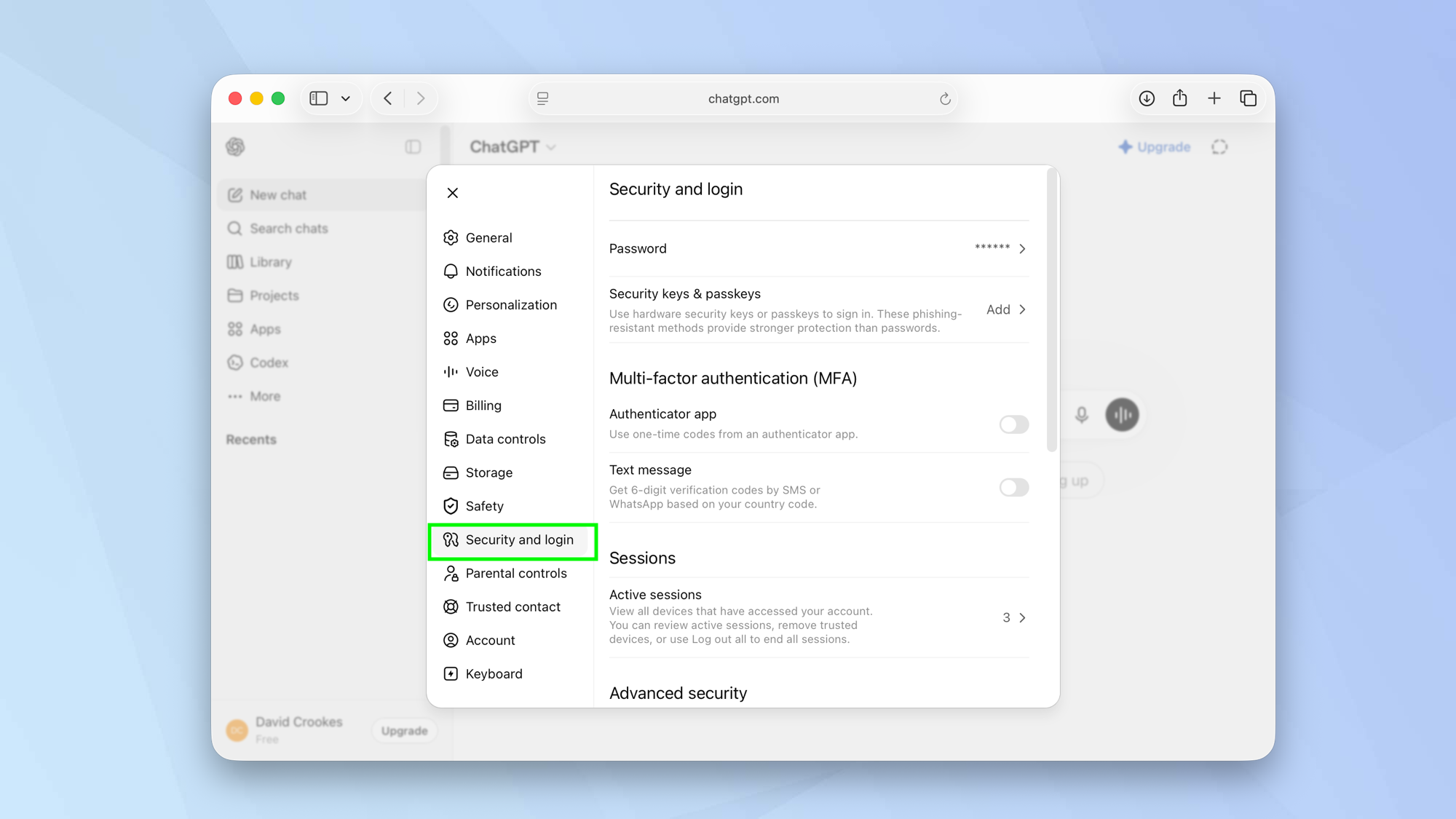
In either case (website or app), choose Security and login from the settings options.
3. View your active sessions
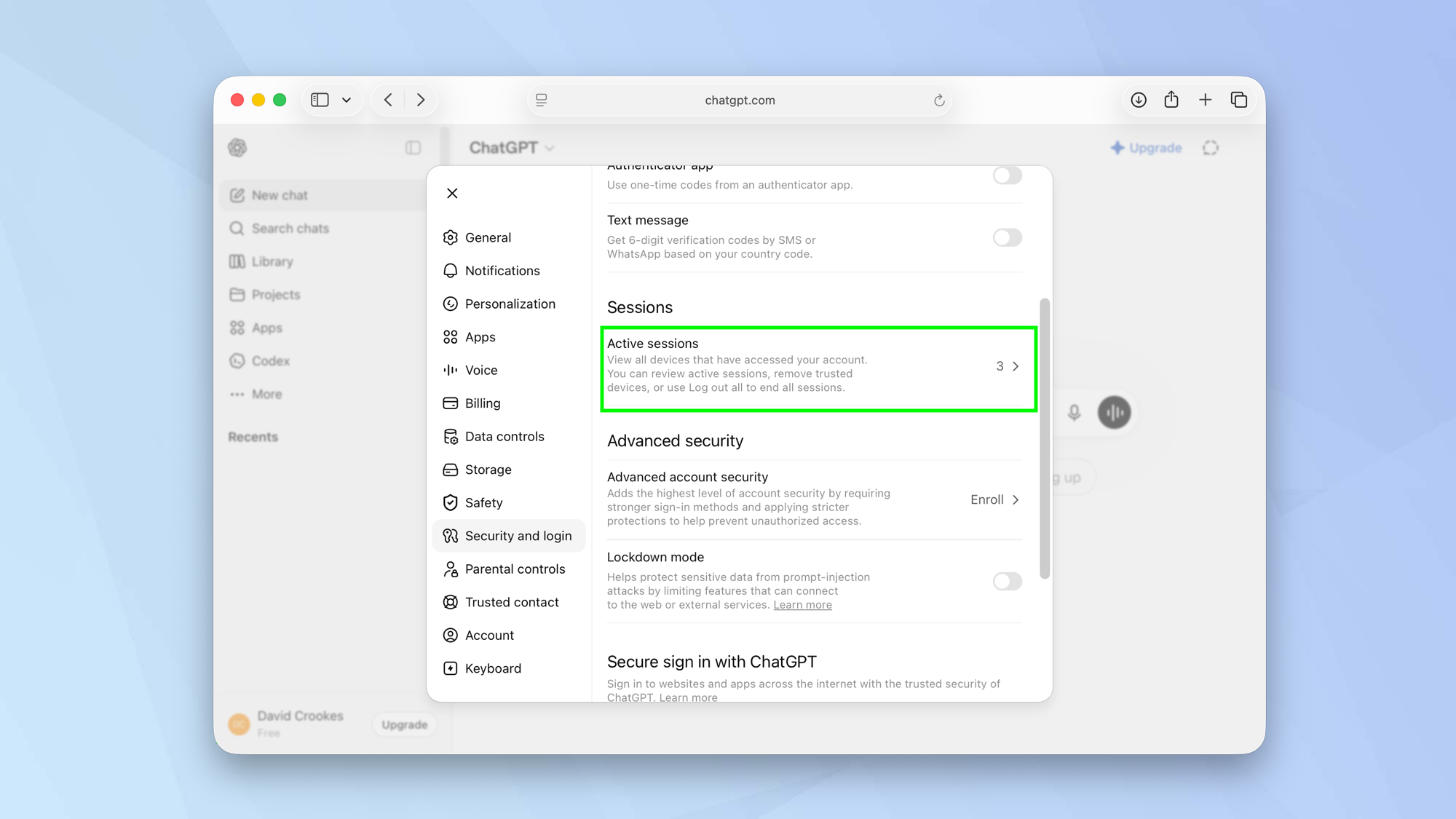
Look under the category Sessions and you will see a subcategory called Active Sessions that shows which devices are currently accessing your ChatGPT account.
You can click or tap Active Sessions to view the devices.
4. Log out of sessions
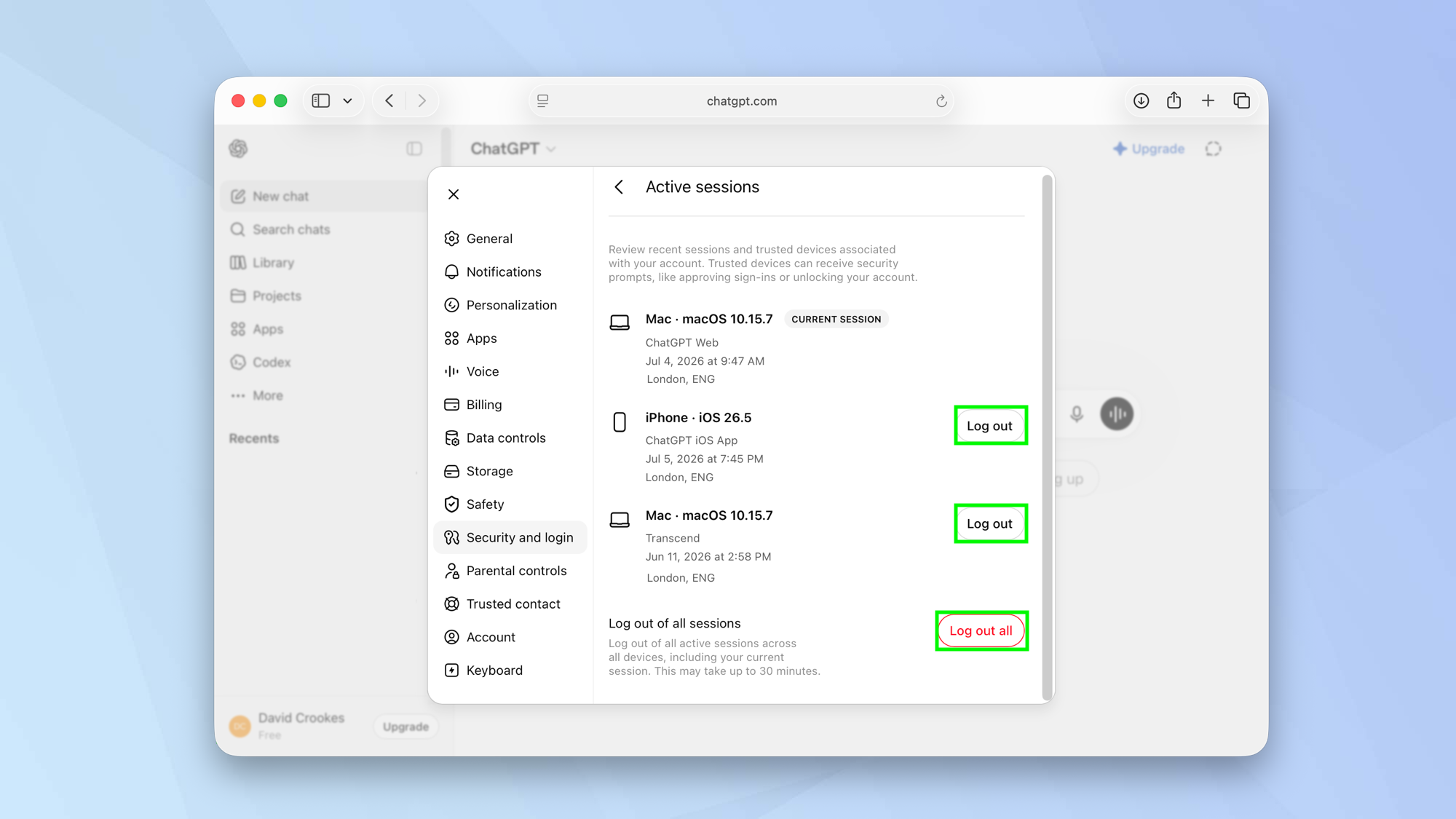
Review your sessions and devices and select Log out next to any that you wish to sign out of.
You can also choose to click Log out all. This will end all active sessions across all devices, a process that could take as long as 30 minutes. This will also log you out of your current chat session.
Source: Tom’s Guide
Leave a Reply